Web Graphics – Using Adobe Tools for Web Design (GRW)
Graphics, Adobe
This concise course gives users a clear, practical introduction to web design, HTML/CSS coding and animation and interactivity. It reviews workflows using Adobe tools such as Photoshop, Dreamweaver, Flash, Captivate and InDesign for online projects.
The course emphasizes hands-on practice with real examples, focusing on image export and optimization, responsive layout basics and using third-party widgets. Participants receive guidance for testing, templates and further deep-dive courses.
THIS TRAINING COURSE WILL HELP YOU:
- Create web-ready graphics and export optimized assets
- Build basic HTML/CSS layouts and connect styles
- Develop animations and interactive content with Adobe
- Prepare interactive PDFs and e-learning modules
WHO SHOULD ATTEND?
- Web and UI designers seeking practical Adobe workflows
- Front-end developers wanting better design skills
- Marketing or content staff creating web visuals
- Students and designers learning web production tools
COURSE LOCATION AND AVAILABLE DATES
Need this course in English?
Public courses are usually delivered in Czech, but this course is also available in English. We can arrange private training for your team online, at your premises or in our classrooms, and tailor the content to your needs.
For groups of around 4 or more participants, private training can already be comparable in price to booking individual places on a public course. Send us your requirements and we’ll recommend the best format and provide an exact quote.
Request training in English
Course content:
Hide details
-
Introduction
-
Philosophy, history
-
Present and future of web creation
-
Modern trends
-
Principles for initial design
-
Terminology
-
Project focus and SEO analysis
-
SEO basics
-
Name, domain
-
Hosting services
-
Web project structure
-
How search engines work
-
Web tools
-
Content management systems
-
E-shops, wikis, forms, blogs…
-
Customization options
-
Graphic and technical design of a custom solution
-
Graphic principles of web design
-
User needs met with simplicity and clarity
-
Corporate identity rules and color schemes
-
Font choice, readability and typographic accuracy
-
Technical constraints and behaviors on the web
-
Personal vs corporate site vs web application
-
Photoshop 1
-
Choosing dimensions
-
Structuring PSD designs
-
HTML/CSS/JavaScript display options for PSDs
-
Photoshop 2
-
Export to optimized file formats
-
Best practices for slicing graphics
-
Integration with CSS
-
Exporting with Adobe Fireworks, GIMP…
-
HTML and Cascading Styles 1
-
Rendering and display options
-
Text editors and Adobe Dreamweaver
-
Browsers
-
Basic page structure
-
Meaning of basic HTML tags
-
HTML and Cascading Styles 2
-
Connecting CSS
-
#id and .class selectors
-
CSS properties to create a basic page look
-
Browser default styles
-
HTML and Cascading Styles 3
-
Embedding custom fonts
-
Text styling rules
-
Bullets and numbering
-
Links
-
Tables and other elements
-
Popular third-party widgets
-
jQuery plugins (Lightbox, jQuery UI)
-
Google Maps, Flash animations and video players
-
Facebook and Twitter widgets
-
Flash 1
-
Flash display technology capabilities
-
Appropriate uses
-
Advantages and disadvantages
-
Tools and options for converting to HTML5 for new devices
-
Flash 2
-
Creating vector objects
-
Importing images
-
Texts and dynamic text
-
Motion animation
-
Movie clips and buttons
-
Flash 3
-
Principles for creating animated ads
-
Building small web presentations or for portable media
-
Graphic templates
-
Using ready-made website templates
-
Marketplaces and pricing
-
How to choose and adapt templates correctly
-
Designing complex applications, testing
-
What is a wireframe
-
Advantages and disadvantages
-
Web applications and Adobe Catalyst
-
Conducting user testing
-
Scenarios and testers
-
Adobe Captivate
-
Creating and editing a project
-
Adding captions, buttons, images, video, audio
-
Creating a start screen with a menu
-
Creating a quiz
-
Evaluating results
-
Publishing the project
-
Interactive PDF
-
Creating a new document in Adobe InDesign
-
Paragraph styles
-
Dynamic content
-
Creating anchors and external links
-
Exporting to PDF
-
Conclusion
-
Practical exercise — assignment topics
-
Objective
-
Structure
-
Graphic design
-
Technology
-
Layout
-
Web design
-
Implementation
-
Evaluation of exercise results
-
Prerequisites:
-
Windows or Mac OS, basic web creation skills and experience with an Adobe tool.
-
Schedule:
-
2 days (9:00-17:00)
Training and learning environment
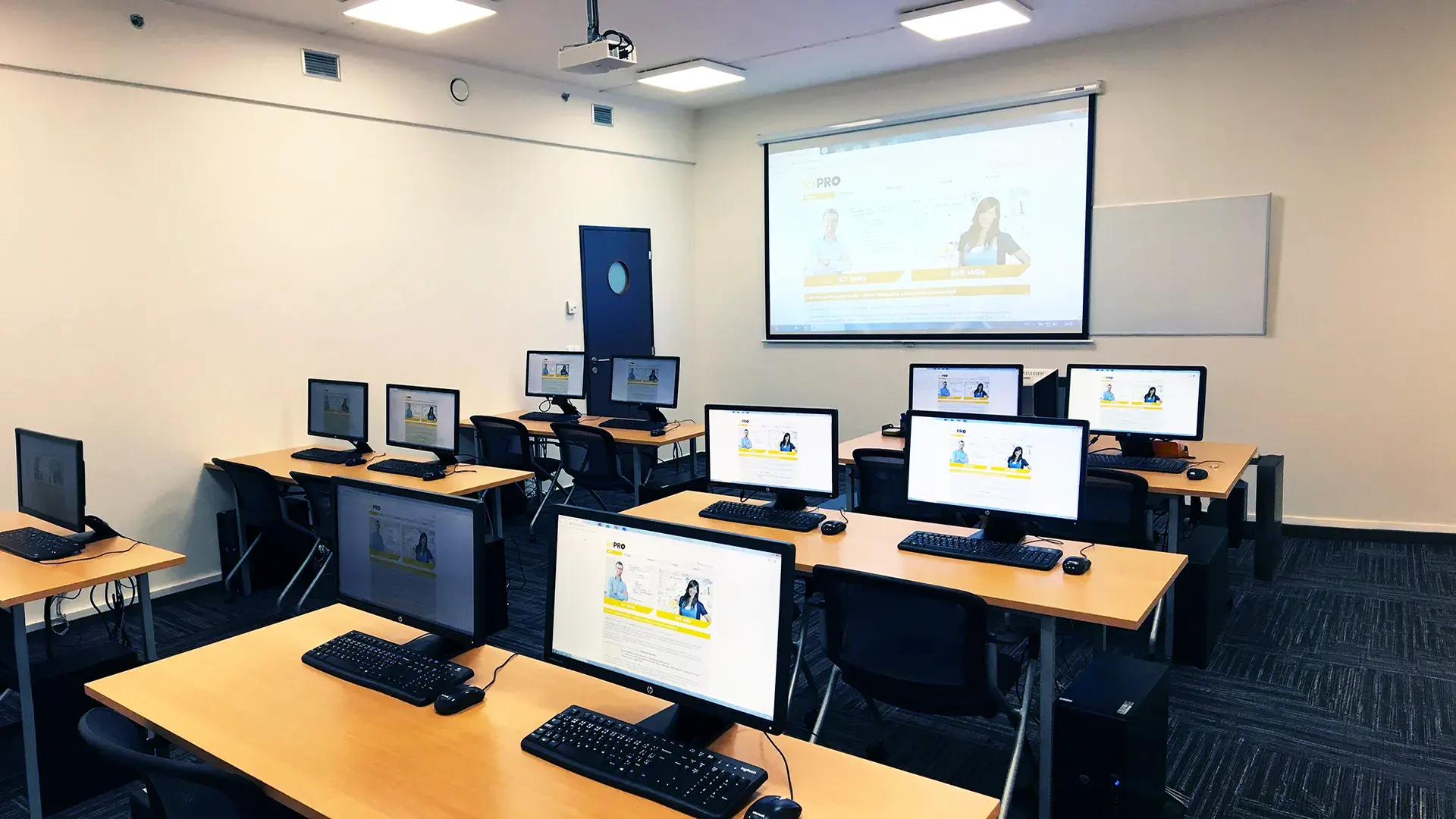 What does the environment for in-person IT courses look like?We hold training courses in our own classrooms equipped with modern computer equipment for each participant and a large projection screen. Each workstation is fitted with a powerful computer for seamless practical exercises, and the environment supports a calm, friendly atmosphere during training.
 Do I need to bring my own laptop to the classroom IT course?Our training rooms are fully equipped, so you do not need to bring your own laptop. A modern computer with all necessary hardware and software is ready for you at your workstation.
 Will you receive an official certificate after completing an IT course?Yes, upon successful completion of the training course, you will receive an official ICT Pro certificate confirming your participation and acquired technical skills. You can use it to verify your qualifications or add it to your professional profile.
 Where can you find our training center in Brno?The premises of the ICT Pro training center are located on the 1st floor of the COMGUARD building at Sochorova 38 in Brno. Positioned on the border of Žabovřesky and Komín, the location is easily accessible by both car and public transport.
 Where can you find our training center in Prague?The premises of the ICT Pro training center are located on the 1st floor of the Opatov Park building at Líbalova 1, Prague 11 – Chodov. The location provides a comfortable environment for your education with convenient access.
 What facilities and refreshments are available to you during training breaks?Our training centers feature a fully equipped kitchenette for a comfortable break during your courses. The facilities include a coffee machine, microwave, kettle, and a wide selection of drinks and snacks.
 What beverage refreshments are available during your course?A beverage station with a coffee machine, teas, syrups, and water is at your disposal throughout the entire training session. You can enjoy a coffee or another drink of your choice anytime during breaks.
 What light refreshments are provided for you during the courses?During course breaks, participants can enjoy light sweet snacks, pastries, and fruit syrups to mix their own drinks. Fresh water dispenser and plates are also available for your convenience.
 Should I bring my own snacks to ICT Pro training?There is no need to. A wide selection of savory snacks, sweet biscuits, and snack bars is available for you during breaks. Boost your energy for all-day focus right inside the training center premises.
 Can you spend training breaks in the fresh air?Yes, an outdoor terrace is available at our training center. During breaks between learning sessions, you can relax in the fresh air in a pleasant green environment.
 Where can you relax during course breaks?Our training center features a spacious outdoor terrace with seating options. During breaks between learning sessions, you can step outside to relax and recharge in the fresh air.