Introduction to Adobe After Effects for Beginners (AAE1)
Graphics, Adobe
This hands-on course introduces core concepts of motion design and teaches practical animation skills in Adobe After Effects. You will learn principles behind animated graphics, basic animation techniques, and working with layers.
Through guided exercises you'll practice key After Effects skills: navigating the interface, animating with keyframes, using masks and shape layers, creating animated text, camera moves, effects and exporting projects.
THIS TRAINING COURSE WILL HELP YOU:
- Understand motion design and its practical uses
- Navigate the Adobe After Effects interface
- Create basic animations using keyframes
- Work with masks, shapes and animated text
- Export projects and create a short animation
WHO SHOULD ATTEND?
- Graphic designers wanting animation skills
- Video and multimedia creators
- Marketing and social media specialists
- Advertising and digital communication staff
- Web designers and beginners interested in motion design
COURSE LOCATION AND AVAILABLE DATES
Need this course in English?
Public courses are usually delivered in Czech, but this course is also available in English. We can arrange private training for your team online, at your premises or in our classrooms, and tailor the content to your needs.
For groups of around 4 or more participants, private training can already be comparable in price to booking individual places on a public course. Send us your requirements and we’ll recommend the best format and provide an exact quote.
Request training in English
Course content:
Hide details
-
Motion design overview
-
Introduction to motion design
-
Trends and sources of inspiration
-
Free resources for projects and assets
-
Introduction to After Effects
-
Interface and basic concepts
-
Workspace: panels explained (Project, Composition, Timeline, Toolbar, Effects & Presets)
-
Layer logic: difference between editing (Premiere Pro) and layering (After Effects)
-
Project setup: composition settings (resolution, FPS, duration)
-
Importing media: how to bring in video, images and audio correctly
-
Working with layers and transforms
-
Layer types: solid, text, shape layer, null object, image, video
-
Five transform properties and shortcuts (P, S, R, T, A)
-
Anchor point basics
-
Animation fundamentals (keyframing)
-
Keyframe principle: creating motion
-
Timeline: moving and trimming layers
-
Interpolation: linear vs Easy Ease for smooth motion
-
Motion Blur: enabling for realistic look
-
Masks and shape layers
-
Drawing shapes: Pen, Rectangle and Ellipse tools
-
Masking: hiding parts of a layer or creating transparency
-
Shape animators: basics of Trim Paths for animated strokes
-
Effects and adjustment layers
-
Applying effects via Effects & Presets
-
Adjustment layers: applying effects to multiple layers (color correction, stylizing)
-
Common effects: Gaussian Blur, Drop Shadow, Fill, Gradient Ramp, etc.
-
Working with text
-
Adding text: formatting in Character and Paragraph panels
-
Text presets: using presets for quick animation
-
Custom text animators, e.g., per-character animation
-
Hierarchy, organization and parenting
-
Parent & Link: connecting layers
-
Pre-composing: grouping layers into sub-compositions to keep projects tidy
-
Basic camera introduction
-
Camera setup
-
Camera movement
-
Exporting finished work
-
Render Queue: native AE export settings
-
Adobe Media Encoder: exporting video and audio
-
Archiving: saving the project with all source files
-
Creating your own animation
-
Students create a short animation from concept to export
-
Practical examples and Q&A
-
Real-world cases and solutions from the instructor
-
Demonstrations and visual examples
-
Prerequisites:
-
Basic computer skills and access to Adobe After Effects.
-
Recommended follow-up course:
-
Adobe After Effects – Advanced Techniques (AAE2)
-
Schedule:
-
3 days (9:00-17:00)
Training and learning environment
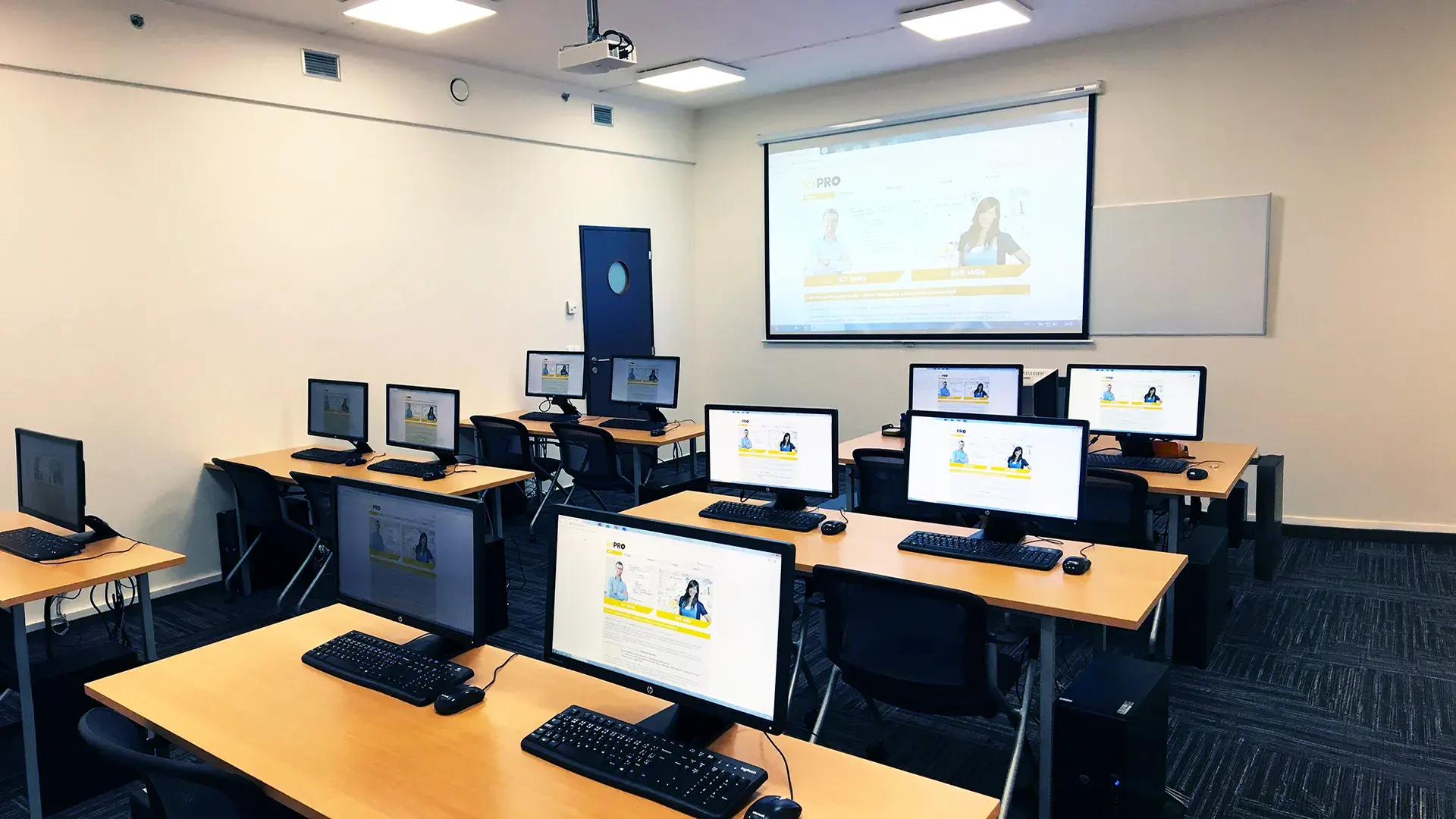 What does the environment for in-person IT courses look like?We hold training courses in our own classrooms equipped with modern computer equipment for each participant and a large projection screen. Each workstation is fitted with a powerful computer for seamless practical exercises, and the environment supports a calm, friendly atmosphere during training.
 Do I need to bring my own laptop to the classroom IT course?Our training rooms are fully equipped, so you do not need to bring your own laptop. A modern computer with all necessary hardware and software is ready for you at your workstation.
 Will you receive an official certificate after completing an IT course?Yes, upon successful completion of the training course, you will receive an official ICT Pro certificate confirming your participation and acquired technical skills. You can use it to verify your qualifications or add it to your professional profile.
 Where can you find our training center in Brno?The premises of the ICT Pro training center are located on the 1st floor of the COMGUARD building at Sochorova 38 in Brno. Positioned on the border of Žabovřesky and Komín, the location is easily accessible by both car and public transport.
 Where can you find our training center in Prague?The premises of the ICT Pro training center are located on the 1st floor of the Opatov Park building at Líbalova 1, Prague 11 – Chodov. The location provides a comfortable environment for your education with convenient access.
 What facilities and refreshments are available to you during training breaks?Our training centers feature a fully equipped kitchenette for a comfortable break during your courses. The facilities include a coffee machine, microwave, kettle, and a wide selection of drinks and snacks.
 What beverage refreshments are available during your course?A beverage station with a coffee machine, teas, syrups, and water is at your disposal throughout the entire training session. You can enjoy a coffee or another drink of your choice anytime during breaks.
 What light refreshments are provided for you during the courses?During course breaks, participants can enjoy light sweet snacks, pastries, and fruit syrups to mix their own drinks. Fresh water dispenser and plates are also available for your convenience.
 Should I bring my own snacks to ICT Pro training?There is no need to. A wide selection of savory snacks, sweet biscuits, and snack bars is available for you during breaks. Boost your energy for all-day focus right inside the training center premises.
 Can you spend training breaks in the fresh air?Yes, an outdoor terrace is available at our training center. During breaks between learning sessions, you can relax in the fresh air in a pleasant green environment.
 Where can you relax during course breaks?Our training center features a spacious outdoor terrace with seating options. During breaks between learning sessions, you can step outside to relax and recharge in the fresh air.