Artificial Intelligence in MS Office365 – From Routine to Productivity (OFFAI)
Microsoft Office, Copilot
Tired of slow Excel sheets or typing in Word with two fingers? Discover how AI in Microsoft Office turns routine work into real productivity. Use Excel to build tables, analyses and charts quickly, let Word draft reports, and speed up slide creation.
Hands-on course covering Copilot and other AI tools for Excel, Word and PowerPoint, focused on data, text and visuals. Learn prompt design, automation and verification so AI becomes a reliable assistant that saves hours weekly.
THIS TRAINING COURSE WILL HELP YOU:
- Understand how AI works in Microsoft Office
- Use AI in Excel, Word and PowerPoint
- Automate routine tasks and produce reports fast
- Handle data, text and visuals more effectively with AI
WHO SHOULD ATTEND?
- Office staff who want to streamline daily tasks
- MS Office users seeking practical AI applications
- Team leads and knowledge workers improving productivity
COURSE LOCATION AND AVAILABLE DATES
This course is delivered in person only in our fully equipped classrooms. All necessary equipment and the prepared training environment are provided.
10–11 Dec 2026
384 €
CZECH
9–10 Nov 2026
384 €
CZECH
Need this course in English?
Public courses are usually delivered in Czech, but this course is also available in English. We can arrange private training for your team online, at your premises or in our classrooms, and tailor the content to your needs.
For groups of around 4 or more participants, private training can already be comparable in price to booking individual places on a public course. Send us your requirements and we’ll recommend the best format and provide an exact quote.
Request training in English
Course content:
Hide details
-
Introduction to Artificial Intelligence
-
What is AI
-
How AI works and available tools for Excel, Word and PowerPoint
-
MS Copilot in Excel
-
Introduction to Copilot in Excel
-
What tasks it can solve and where it helps
-
Practical usage scenarios for Copilot in Excel
-
Creating a pivot table using AI
-
Using other AI tools to support Excel work
-
Working with data and formulas
-
Data processing and generating formulas and functions
-
How to generate a quick table from a prompt
-
Designing a macro with AI and using it in Excel
-
Optimizing existing formulas
-
Data analysis
-
Predictive analysis and forecasting
-
Deep data exploration in Excel
-
Reports and visualizations
-
Creating charts with AI
-
Visualizing data using AI tools
-
MS Copilot in PowerPoint
-
Introduction to Copilot in PowerPoint
-
What tasks it can solve and where it helps
-
Practical usage scenarios for Copilot in PowerPoint
-
Using other AI tools to support PowerPoint work
-
Generating and creating presentations
-
Generating an outline from a short brief
-
Converting a text document (Word, notes) into a presentation
-
Quickly generate a presentation with Gamma and then edit it in PowerPoint
-
Generate or rework a presentation using other AI tools
-
Working with content and visuals
-
Generating a presentation from a table using ChatGPT
-
Quickly create engaging images for slides
-
Generate a short humorous comic for a presentation
-
Edits and automation
-
How to edit an image using AI for presentations
-
Have AI prepare images for presentation use
-
Generate slide text using AI
-
Edit all slides in a presentation using a macro
-
Effective use of AI tools
-
How to quickly get a summary from a presentation and overview
-
How to generate a video for a presentation
-
MS Copilot in Word
-
Introduction to Copilot in Word
-
What tasks it can solve and where it helps
-
Practical usage scenarios for Copilot in Word
-
Using other AI tools to support Word work
-
Creating and editing texts
-
Have AI write an interesting article
-
Have AI write an article in a humorous style
-
Write a macro with AI to help with Word text work
-
Working with documents
-
Quickly find information in a document
-
Create a summary from a document
-
Fix grammar in a document
-
Dictate text into a document
-
Improvements and translations
-
Ask AI to suggest edits for an article or text
-
Translate a document
-
Have a document read aloud in Word
-
Reports and sources
-
Quickly create a report
-
Search for citations and sources with AI assistance
-
Additional effective uses of AI tools with Excel, Word and PowerPoint
-
Practical AI usage scenarios
-
Dictate a prompt to AI instead of typing
-
Ask AI to write a step-by-step procedure for Excel, Word or PowerPoint
-
Learn Excel, Word and PowerPoint quickly using study features
-
Avoid repeating the same instructions to AI and work more efficiently
-
Verification and updates
-
Verify current formula syntax with AI
-
Check for news and updates for Excel, Word and PowerPoint
-
Managing many documents with AI (NotebookLM)
-
Convert documents to PDF and query their content with AI
-
Create an audio recording from a document
-
Prepare notes from a document
-
Create a quiz from a document
-
Quickly extract information from multiple documents with citations
-
Prerequisites:
-
Basic knowledge of MS Word, Excel and PowerPoint.
-
Schedule:
-
2 days (9:00-17:00)
-
Price per person:
-
384.00 € ( 464.64 € incl. 21% VAT)
-
Language:
-
Česky
Training and learning environment
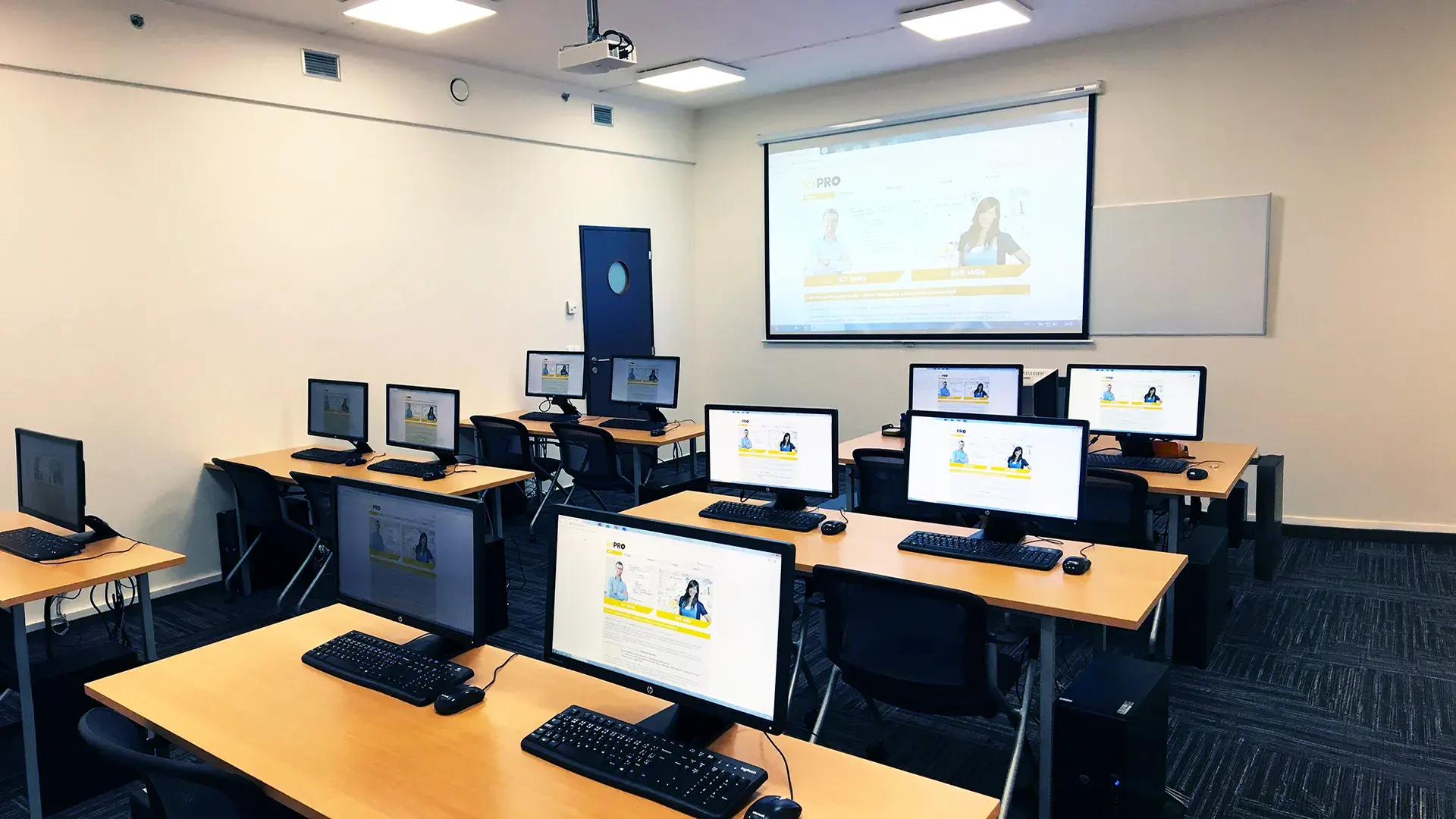 What does the environment for in-person IT courses look like?We hold training courses in our own classrooms equipped with modern computer equipment for each participant and a large projection screen. Each workstation is fitted with a powerful computer for seamless practical exercises, and the environment supports a calm, friendly atmosphere during training.
 Do I need to bring my own laptop to the classroom IT course?Our training rooms are fully equipped, so you do not need to bring your own laptop. A modern computer with all necessary hardware and software is ready for you at your workstation.
 Will you receive an official certificate after completing an IT course?Yes, upon successful completion of the training course, you will receive an official ICT Pro certificate confirming your participation and acquired technical skills. You can use it to verify your qualifications or add it to your professional profile.
 Where can you find our training center in Brno?The premises of the ICT Pro training center are located on the 1st floor of the COMGUARD building at Sochorova 38 in Brno. Positioned on the border of Žabovřesky and Komín, the location is easily accessible by both car and public transport.
 Where can you find our training center in Prague?The premises of the ICT Pro training center are located on the 1st floor of the Opatov Park building at Líbalova 1, Prague 11 – Chodov. The location provides a comfortable environment for your education with convenient access.
 What facilities and refreshments are available to you during training breaks?Our training centers feature a fully equipped kitchenette for a comfortable break during your courses. The facilities include a coffee machine, microwave, kettle, and a wide selection of drinks and snacks.
 What beverage refreshments are available during your course?A beverage station with a coffee machine, teas, syrups, and water is at your disposal throughout the entire training session. You can enjoy a coffee or another drink of your choice anytime during breaks.
 What light refreshments are provided for you during the courses?During course breaks, participants can enjoy light sweet snacks, pastries, and fruit syrups to mix their own drinks. Fresh water dispenser and plates are also available for your convenience.
 Should I bring my own snacks to ICT Pro training?There is no need to. A wide selection of savory snacks, sweet biscuits, and snack bars is available for you during breaks. Boost your energy for all-day focus right inside the training center premises.
 Can you spend training breaks in the fresh air?Yes, an outdoor terrace is available at our training center. During breaks between learning sessions, you can relax in the fresh air in a pleasant green environment.
 Where can you relax during course breaks?Our training center features a spacious outdoor terrace with seating options. During breaks between learning sessions, you can step outside to relax and recharge in the fresh air.