Windows 11 – for administrators (W111)
Microsoft, Windows 11
This course is for IT professionals and administrators who need practical skills to manage Windows 11 in business environments. It covers installation and deployment, user and identity management, performance optimization and practical approaches to secure and maintain systems.
This training gives you the knowledge to manage Windows 11 across small and large organizations, focusing on security and compliance, storage and networking management, virtualization and containers and practical methods for update, backup and troubleshooting operations.
THIS TRAINING COURSE WILL HELP YOU:
- Compare Windows 11 editions and licensing models
- Plan and perform installs, upgrades and Autopilot deployments
- Manage users, identities and device policies with Intune
- Configure advanced storage, networking and data protection
- Optimize system performance and use virtualization and containers
WHO SHOULD ATTEND?
- IT department managers responsible for infrastructure
- System administrators extending Windows 11 skills
- Security specialists focused on OS hardening and compliance
- Technical consultants supporting enterprise networks and OS
- Business owners who want secure, up-to-date systems
COURSE LOCATION AND AVAILABLE DATES
Contact us
Need this course in English?
Public courses are usually delivered in Czech, but this course is also available in English. We can arrange private training for your team online, at your premises or in our classrooms, and tailor the content to your needs.
For groups of around 4 or more participants, private training can already be comparable in price to booking individual places on a public course. Send us your requirements and we’ll recommend the best format and provide an exact quote.
Request training in English
Course content:
Hide details
-
Installation and deployment
-
Overview of Windows 11 editions and licensing
-
Installation methods:
-
a) Clean install, upgrade paths and deployment tools
-
b) Windows Configuration Designer (WCD) for config packages
-
Overview of Windows Autopilot for modern deployment
-
User and identity management
-
Improved local user management
-
Joining Azure AD and hybrid identity scenarios
-
User management with Microsoft Endpoint Manager (Intune)
-
Fast user switching and session management improvements
-
Sign-in options, including passwordless:
-
a) Options for standalone devices
-
b) Options for on-premises domains and Microsoft Entra (Azure AD)
-
Storage management
-
Advanced disk management with PowerShell (Storage module)
-
Storage Spaces
-
Storage Sense and automatic data cleanup
-
Managing BitLocker and encrypted drives
-
Networking and domain connectivity
-
Connecting Windows 11 to On-Prem, Hybrid or Azure AD domains
-
Networking feature improvements
-
Troubleshooting network connectivity issues
-
Security and compliance
-
Hardware security:
-
a) TPM 2.0 and Secure Boot
-
b) Core Isolation and Memory Integrity
-
c) Virtualization-Based Security (VBS) and HVCI
-
CPU-level security:
-
a) Integration with modern CPUs for enhanced protection
-
b) Support for the Pluton Security Processor
-
OS security:
-
a) Controlled Folder Access and exploit protection
-
b) Kernel Stack Protection and Isolated User Mode
-
Application security:
-
a) Windows Defender Application Guard updates
-
b) SmartScreen improvements
-
Performance and monitoring
-
New Task Manager features and resource overviews
-
Power and battery management tools
-
Windows Performance Recorder and Analyzer
-
Event Viewer and Reliability Monitor insights
-
Application and feature management
-
Microsoft Edge updates and admin policies
-
Windows Package Manager (winget) for app deployment
-
Widget management and taskbar customization
-
App compatibility tools:
-
a) Windows Defender Application Guard updates
-
b) Packaging with MSIX
-
c) Windows App Assure for compatibility
-
Virtualization and containers
-
Hyper-V and virtual machine improvements
-
Windows Sandbox updates
-
Using Windows Containers on Windows 11
-
Accessibility and usability
-
Accessibility feature improvements and tools
-
Snap Layouts and virtual desktop enhancements
-
Settings app updates and gradual Control Panel replacement
-
Backup, recovery and updates
-
Windows 11 update mechanisms:
-
a) Flexible Windows Update features
-
b) Tools to monitor update compliance
-
c) Update controls for admins: deferrals, pauses, forced updates
-
Automatic maintenance:
-
a) Overview of automatic maintenance
-
b) Configure maintenance schedules via Group Policy
-
c) Integration with Windows Update, Disk Cleanup and performance tuning
-
Advanced recovery and troubleshooting options
-
Backup strategies with File History and OneDrive integration
-
Prerequisites:
-
Basic understanding of Windows OS, general IT administration experience and basic networking concepts.
-
Recommended follow-up course:
-
Windows Server – Installation, Configuration and Server Administration (WS161)
-
Schedule:
-
3 days (9:00-17:00)
Training and learning environment
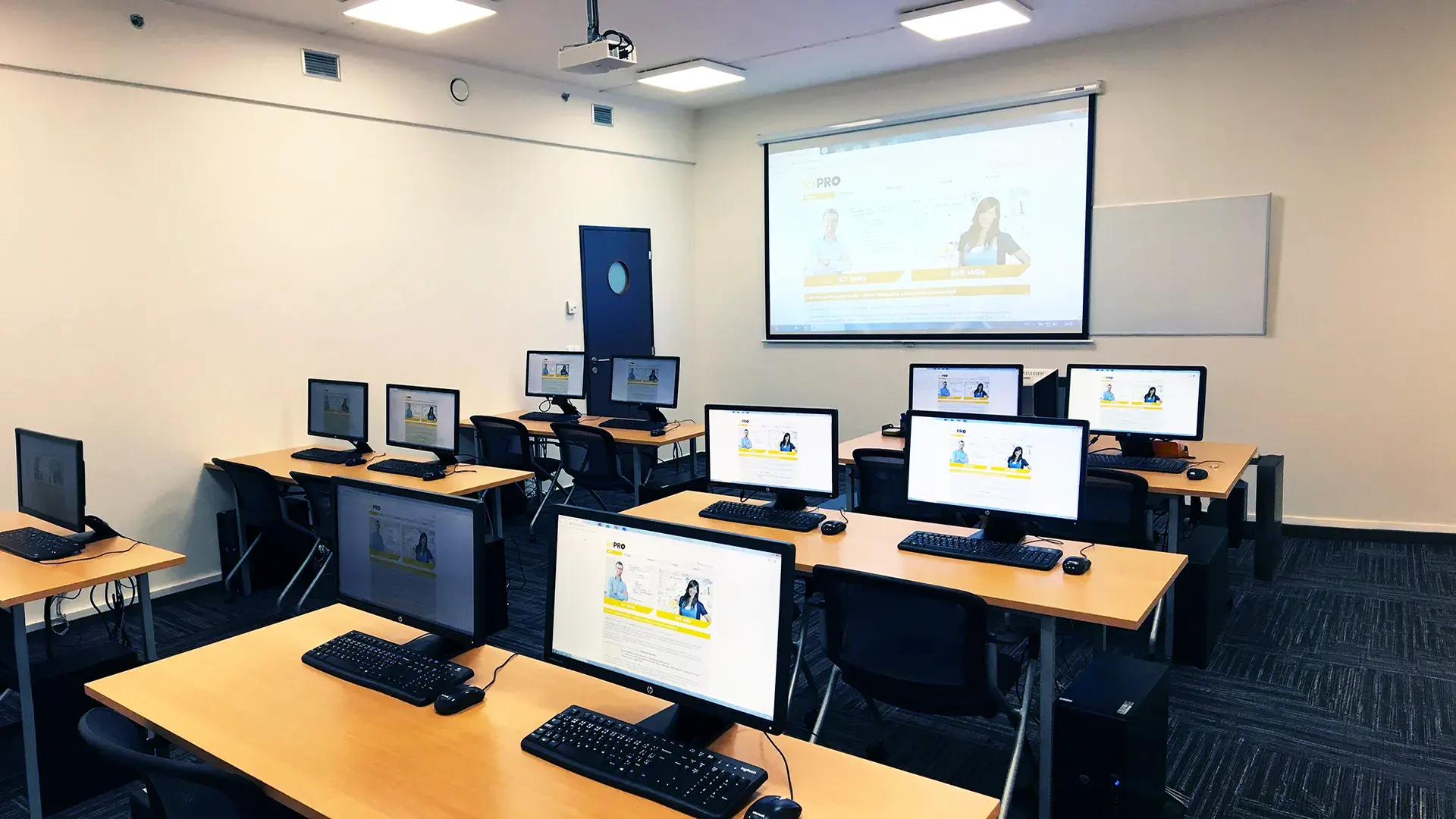 What does the environment for in-person IT courses look like?We hold training courses in our own classrooms equipped with modern computer equipment for each participant and a large projection screen. Each workstation is fitted with a powerful computer for seamless practical exercises, and the environment supports a calm, friendly atmosphere during training.
 Do I need to bring my own laptop to the classroom IT course?Our training rooms are fully equipped, so you do not need to bring your own laptop. A modern computer with all necessary hardware and software is ready for you at your workstation.
 Will you receive an official certificate after completing an IT course?Yes, upon successful completion of the training course, you will receive an official ICT Pro certificate confirming your participation and acquired technical skills. You can use it to verify your qualifications or add it to your professional profile.
 Where can you find our training center in Brno?The premises of the ICT Pro training center are located on the 1st floor of the COMGUARD building at Sochorova 38 in Brno. Positioned on the border of Žabovřesky and Komín, the location is easily accessible by both car and public transport.
 Where can you find our training center in Prague?The premises of the ICT Pro training center are located on the 1st floor of the Opatov Park building at Líbalova 1, Prague 11 – Chodov. The location provides a comfortable environment for your education with convenient access.
 What facilities and refreshments are available to you during training breaks?Our training centers feature a fully equipped kitchenette for a comfortable break during your courses. The facilities include a coffee machine, microwave, kettle, and a wide selection of drinks and snacks.
 What beverage refreshments are available during your course?A beverage station with a coffee machine, teas, syrups, and water is at your disposal throughout the entire training session. You can enjoy a coffee or another drink of your choice anytime during breaks.
 What light refreshments are provided for you during the courses?During course breaks, participants can enjoy light sweet snacks, pastries, and fruit syrups to mix their own drinks. Fresh water dispenser and plates are also available for your convenience.
 Should I bring my own snacks to ICT Pro training?There is no need to. A wide selection of savory snacks, sweet biscuits, and snack bars is available for you during breaks. Boost your energy for all-day focus right inside the training center premises.
 Can you spend training breaks in the fresh air?Yes, an outdoor terrace is available at our training center. During breaks between learning sessions, you can relax in the fresh air in a pleasant green environment.
 Where can you relax during course breaks?Our training center features a spacious outdoor terrace with seating options. During breaks between learning sessions, you can step outside to relax and recharge in the fresh air.