Adobe InDesign – Intensive Course (AIND1)
Graphics, Adobe
The intensive Adobe InDesign course shows how to create simple, semi-professional and complex print PDFs with a top page-layout app. You will learn document setup, page layout, typography and print preparation workflows.
It covers font anatomy, building multi-file books and web typography, plus advanced features for styling, images and output. You will practice font structure, book creation, styles and automation to deliver ready-to-print and interactive PDFs.
THIS TRAINING COURSE WILL HELP YOU:
- Create print-ready PDFs and prepare print output
- Set up documents, pages, master pages and pagination
- Use styles for fast, consistent typography
- Import and manage images and graphics
- Automate tasks and generate interactive PDFs
WHO SHOULD ATTEND?
- Graphic designers and layout artists
- Prepress and production staff
- Marketing and communications professionals
- Students and others learning desktop publishing
COURSE LOCATION AND AVAILABLE DATES
Need this course in English?
Public courses are usually delivered in Czech, but this course is also available in English. We can arrange private training for your team online, at your premises or in our classrooms, and tailor the content to your needs.
For groups of around 4 or more participants, private training can already be comparable in price to booking individual places on a public course. Send us your requirements and we’ll recommend the best format and provide an exact quote.
Request training in English
Course content:
Hide details
-
Introduction
-
Getting to know Adobe InDesign
-
Comparison with other DTP/page-layout programs
-
File formats
-
Overview of graphic file formats for import
-
Characteristics of ephemeral/social printed materials
-
Business and administrative print materials
-
Document setup
-
Preparing for layout — page sizes
-
Margins
-
Type area and layout grid
-
Creating master pages
-
Pagination
-
BONUS - preferences for large and special documents (folded sheets, inserts, etc.)
-
Typesetting text
-
Choosing the right font
-
What a font contains
-
Character panel
-
Creating text frames
-
Threading frames
-
Font size, weight and leading options
-
Alignment and bullets
-
Text on a path
-
BONUS - using left and right tab stops in one paragraph
-
Character and paragraph styles
-
Creating character and paragraph styles
-
Deriving additional styles
-
Using styles and establishing hierarchy
-
Drawing
-
Pencil and Pen tools
-
Bezier curve mode
-
Converting points
-
Selection and direct selection tools
-
Stroke panel
-
Simple shapes
-
Rectangle, ellipse, polygon, star
-
Pathfinder panel — unite and subtract objects
-
Object styles
-
BONUS – shadow and glow effects
-
Images
-
Importing images
-
Links panel
-
Updating and auto-fixing links
-
Image transparency relative to text
-
Graphic frame vs. image frame
-
Transforming images
-
Page flow and wrap
-
Creating custom shapes for text and graphic frames with the Pen
-
Text wrapping options and parameters
-
Colors and gradients
-
Creating and editing colors
-
Applying color to simple objects
-
Images and text
-
Fill and stroke for frames or text characters
-
Creating gradients
-
Swatches panel and editing colors
-
Transparency
-
Blending modes
-
BONUS – swatch libraries
-
Tables
-
Creating and working with tables
-
Table panel
-
Merging and splitting cells
-
Importing content from MS Excel
-
Cell and table styles
-
BONUS – importing and linking XML files
-
Additional features
-
Spell check
-
Interactive PDF — generating TOC, indexes and external links
-
Synchronizing character, paragraph and object styles across book files
-
BONUS – custom graphic library files
-
Typography
-
Basic font terms
-
Paragraph rhythm and structure
-
Page composition with text
-
Entering special characters
-
Keyboard shortcuts
-
BONUS – graphic compositions: centering, symmetry, focusing, head/lead room, s-curve, rules of three, golden mean, posters, and client-facing layout considerations
-
Actions and automation
-
Creating actions
-
Recording and running actions (macros) by mouse
-
Links to plugins and scripts
-
Creating calendars, protective elements
-
Corner effects
-
BONUS – Viktor typesetting cleaner and Windows alternatives, image galleries, text-to-path, text property counters and more
-
Print preparation
-
Preflight panel
-
Color conversions
-
PDF export options
-
Recommended workflows for small and large print jobs
-
Additional information
-
Advanced settings
-
Online help
-
Prerequisites:
-
Windows or Mac OS, basic MS Word skills and experience with a graphics editor (e.g., Photoshop, Illustrator, Zoner Photo Studio, or GIMP).
-
Recommended follow-up course:
-
InDesign GREP – Efficient text editing (GREP)
-
Schedule:
-
2 days (9:00-17:00)
Selected customer reviews
Doosan Infracore Europe s.r.o, Mario N.
Adobe InDesign – Intensive Course (
AIND1)
"This type of training need more practice time."
Training and learning environment
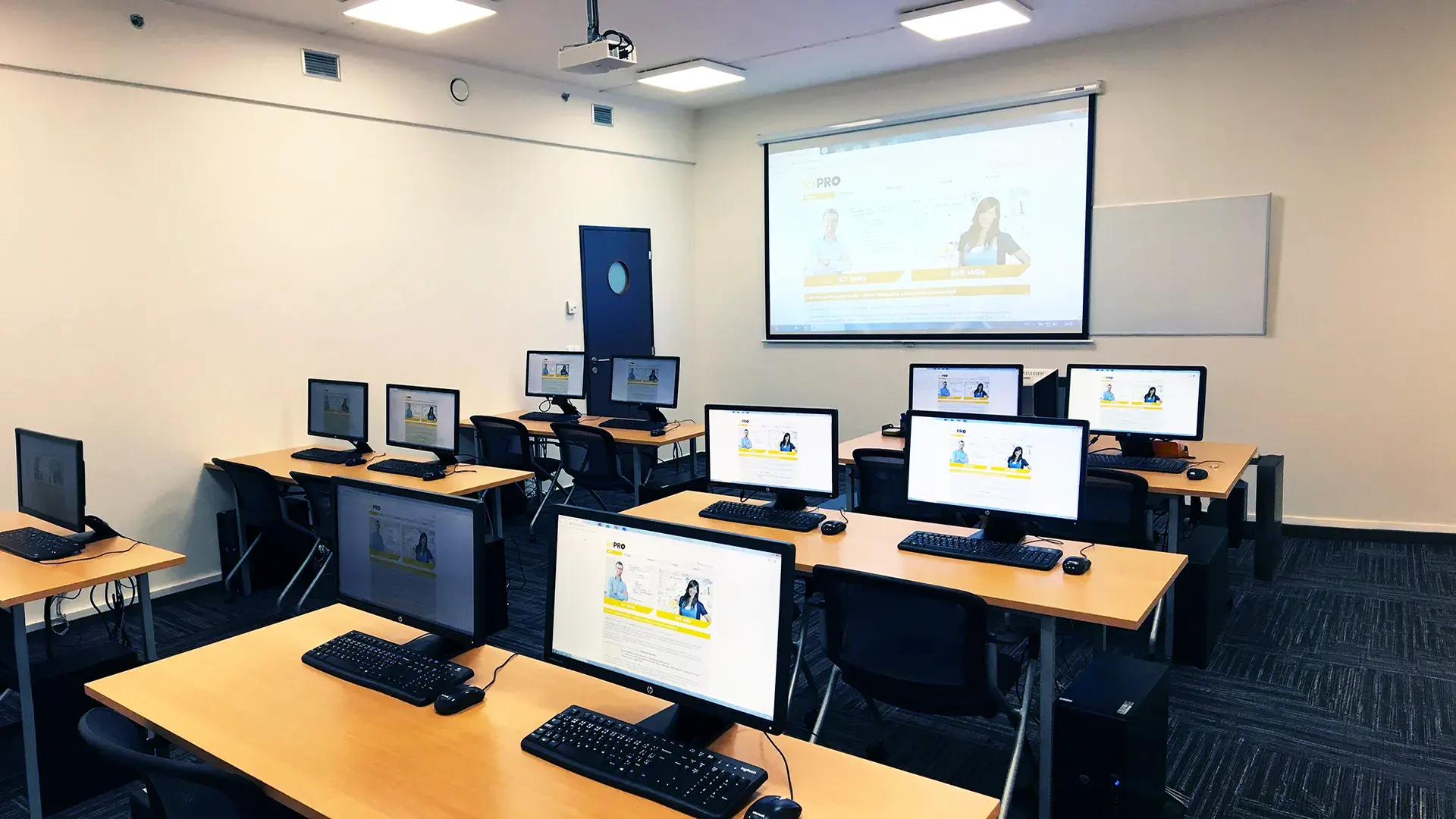 What does the environment for in-person IT courses look like?We hold training courses in our own classrooms equipped with modern computer equipment for each participant and a large projection screen. Each workstation is fitted with a powerful computer for seamless practical exercises, and the environment supports a calm, friendly atmosphere during training.
 Do I need to bring my own laptop to the classroom IT course?Our training rooms are fully equipped, so you do not need to bring your own laptop. A modern computer with all necessary hardware and software is ready for you at your workstation.
 Will you receive an official certificate after completing an IT course?Yes, upon successful completion of the training course, you will receive an official ICT Pro certificate confirming your participation and acquired technical skills. You can use it to verify your qualifications or add it to your professional profile.
 Where can you find our training center in Brno?The premises of the ICT Pro training center are located on the 1st floor of the COMGUARD building at Sochorova 38 in Brno. Positioned on the border of Žabovřesky and Komín, the location is easily accessible by both car and public transport.
 Where can you find our training center in Prague?The premises of the ICT Pro training center are located on the 1st floor of the Opatov Park building at Líbalova 1, Prague 11 – Chodov. The location provides a comfortable environment for your education with convenient access.
 What facilities and refreshments are available to you during training breaks?Our training centers feature a fully equipped kitchenette for a comfortable break during your courses. The facilities include a coffee machine, microwave, kettle, and a wide selection of drinks and snacks.
 What beverage refreshments are available during your course?A beverage station with a coffee machine, teas, syrups, and water is at your disposal throughout the entire training session. You can enjoy a coffee or another drink of your choice anytime during breaks.
 What light refreshments are provided for you during the courses?During course breaks, participants can enjoy light sweet snacks, pastries, and fruit syrups to mix their own drinks. Fresh water dispenser and plates are also available for your convenience.
 Should I bring my own snacks to ICT Pro training?There is no need to. A wide selection of savory snacks, sweet biscuits, and snack bars is available for you during breaks. Boost your energy for all-day focus right inside the training center premises.
 Can you spend training breaks in the fresh air?Yes, an outdoor terrace is available at our training center. During breaks between learning sessions, you can relax in the fresh air in a pleasant green environment.
 Where can you relax during course breaks?Our training center features a spacious outdoor terrace with seating options. During breaks between learning sessions, you can step outside to relax and recharge in the fresh air.